

The stock room is one screen for all your stock. Add a line in seconds, change a count or a price where it sits, and mark a sale with one click, whether it sold at your door or through bask. It is built for keepers and shops holding more animals than a list of cards can comfortably show.
It comes with the Breeder plan. Open it from Stock room in your account menu, or from the stock room tile on your dashboard. On Keeper or Hobbyist you'll see it on the dashboard marked "Comes with Breeder". Compare the plans.
The stock room and My animals show the same listings. Anything you change in one shows in the other, so use whichever suits the job.
The screen
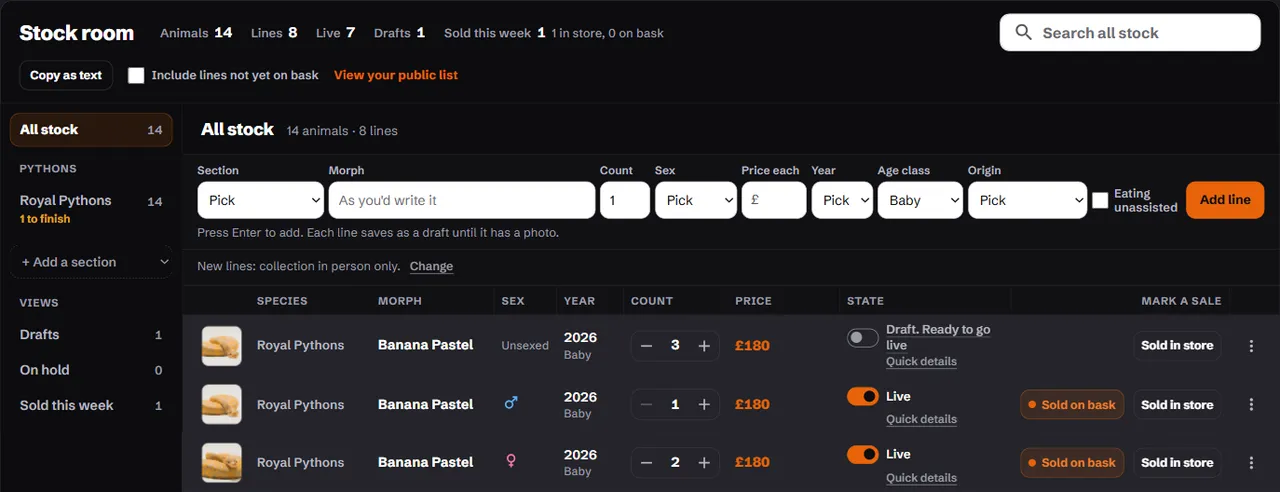
Across the top are your figures: animals, lines, live, drafts and sold this week (split into in store and on bask). Under them sits a search box that looks across all your stock, whatever section you have open.
Down the left is the rail:
- All stock, everything you hold.
- Your sections, grouped by family (pythons, lizards and so on), each with its animal count. A section with drafts in it says how many are left to finish.
- + Add a section, to start a section you hold nothing in yet.
- Drafts, On hold and Sold this week.
The table shows the rows of whatever you picked: photo, species, morph, sex, year, count, price, state and the sale buttons. It pages at 25 rows.
Adding a line
The entry row sits at the top of the table, always open. Fill it in left to right and press Enter:
- Section, if you're in All stock, and Species, if the section holds several.
- Morph. Type to search the morphs for that species. Where a species has no morph list yet, write it as you would on a card.
- Count. A plain number, such as
6, or a ratio. - Sex, when the count was a plain number.
- Price each.
- Year, Age class and Origin (captive-bred or self-produced).
- Eating unassisted, shown for babies only. Tick it when they are.
Every line saves as a draft. It goes live once it has a photo and nothing else is missing.
Ratios
Type the count as males, females, unsexed, and the stock room makes a line for each sex:
1.2.3makes three lines: 1 male, 2 females, 3 unsexed.0.1makes one female.2.2makes two males and two females.
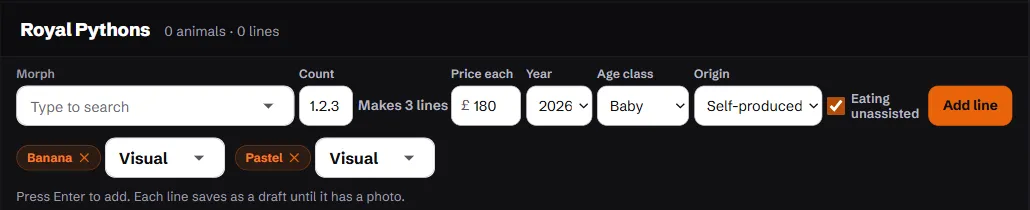
A row holds up to 50 animals. Each line needs its own photo, because a buyer should see the animals they're buying.
What carries over
Year, age class and origin carry over from the last line you added for that species, so a clutch is quick to type. The Eating unassisted tick never carries over: tick it for each batch you've seen feeding.
Defaults for new lines
Beside the entry row, New lines: … Change sets what every new line starts with: your delivery options, a standard description and an origin. Anything you type in the entry row wins over a default. You can still change any listing on its edit page.
Working on a row
- Count. Use + and −. Minus is a correction (an animal kept back, a miscount, a loss); it isn't recorded as a sale. To record a sale, use the sale buttons.
- Price. Click the price, type the new one, press Enter. The price history is kept, and a running sale price ends when you change the base price, just as on the edit page.
- Live. The switch puts a row on bask or takes it off. If something is missing, the row tells you what.
- Photo. Click the photo cell to add one. A row with no photo shows a camera.
- Quick details. Opens a panel under the row with what it still lacks, then year, age class, origin, eating unassisted, weight, delivery and description. Most drafts can be finished and put live here without leaving the screen. Morphs, photo order, lineage, Article 10 numbers and titles stay on the edit page.
The row menu (⋮) has Open the edit page, Put on hold (or Take off hold), Add again and Delete.
- Put on hold reserves the whole row until the default release date. Held rows can still be sold.
- Add again copies the line into a fresh draft with no year and no photo, for the next batch of the same animals.
- Delete on a single animal or a pair asks whether it sold first. If it did, mark it sold instead: the advert stays up as a record of the sale.
A pair or group sold together shows as Pair or Group of 3, and its count can't be changed. A listing with an Article 10 number is always one animal. A row managed by your own stock software shows Synced and can only be opened on its edit page.
Marking a sale
Every row for sale has two buttons: Sold on bask and Sold in store.
- On a line of several, one click takes one off the count. On the last one, or a single animal, the listing is marked sold and the advert stays up as a sold record.
- A message confirms what happened, with Undo for a few seconds.
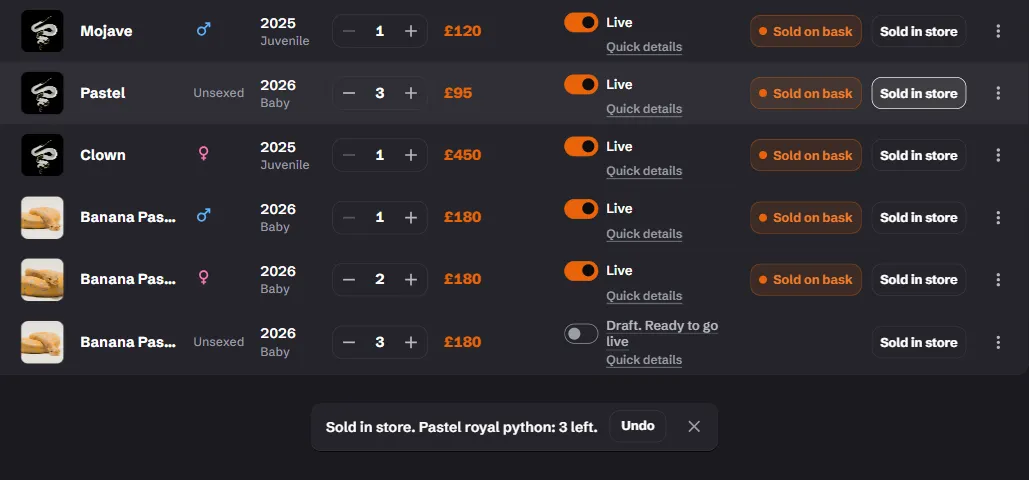
- Sold on bask appears once a listing has been live. Its message also offers Name the buyer, which lists the people who messaged you about that advert. The person you name is invited to review your store.
- Sold in store never asks for a buyer.
Sold this week in the rail lists every sale from the last seven days. From there you can:
- Reverse a sale you marked by mistake, which puts the animal back in stock.
- Name the buyer or Change buyer.
- Note what it sold for. That's optional and only you see it. Once enough sales are noted, the prices go into guides showing what each morph sells for, with no names or stores attached.
After seven days a sale can no longer be reversed or have its buyer changed.
On your phone
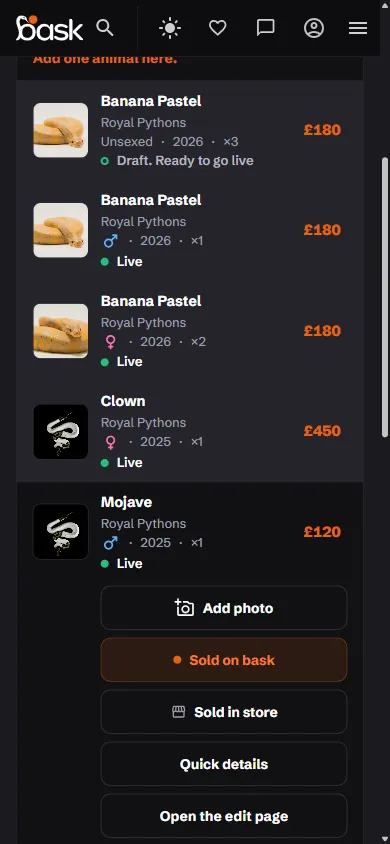
The stock room on a phone does the two jobs you do standing at the vivarium: add a photo, and mark a sale.
Pick a section from Show, tap a row, and you get Add photo (it opens the camera), Sold on bask, Sold in store, Quick details and Open the edit page. A draft that lacks nothing also offers Put it live. Adding new lines is quicker on a computer; on a phone, use Add an animal.
Related
- Your livestock list: the public list made from your stock room.
- Manage your listings: the same listings, one card at a time.